|

 Android > ActionBar - Tab 메뉴에 CustomView 이용하여 스타일 적용하는 방법
지난번에 Action Bar Style 변경 및 테마 변경 방법을 알아보았는데요. 오늘은 Tab 메뉴에 내가 원하는 디자인의 customview을 적용하는 방법에 대해서
알아보도록 하겠습니다.
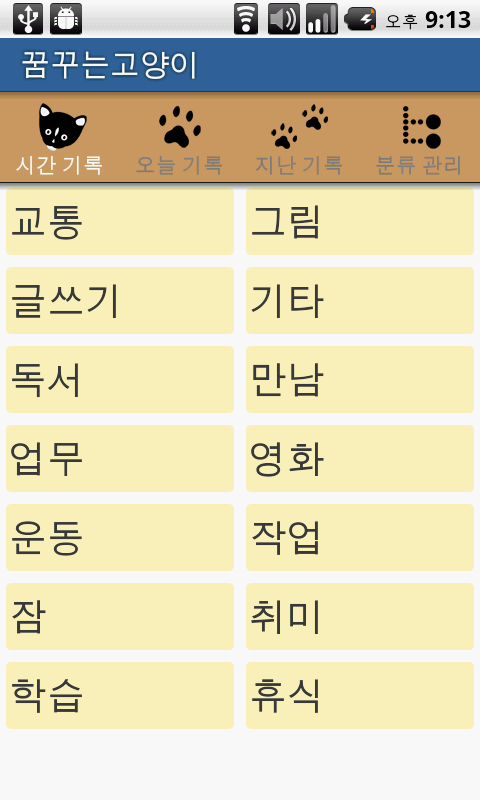
그림의 Tab 메뉴를 보면 모양은 각각 다르겠지만, 아이콘 + 텍스트 형태의 Tab 메뉴를 구성하고 있습니다.
기본적인 ActionBar Tab 메뉴에서는 나오기 힘든 구조 입니다.
이런경우 layout 을 잡은 다음에 Tab 의 View로 등록만 하면 됩니다.
layout_actionbar_tab.xml 파일을 만든후 Imageview 와 Textview 를 위치시킵니다.
res/layout/layout_actionbar_tab.xml
tabIcon + tabText 두개를 만들었습니다.
이제 java 소스에서 Tab 부분만 소스를 보도록 하겠습니다.
소스를 보면 아시겠지만 tabView1, tabView2, tabview3 의 View 객체에 넣고 layout_actionbar_tab.xml 파일을 읽어 드립니다.
layout_actionbar_tab 에 있는 tabText 와 tabIcon 객체도 읽어 드린다. 각기 다른 아이콘과 text 를 연결시키면 됩니다.
Tab 메뉴에 표시는 방법은 tab1.setCustomView(tabView1) , tab2.setCustomView(tabView2) , tab3.setCustomView(tabView3) 을 통해 표시할 수 있습니다.
알아보도록 하겠습니다.
그림의 Tab 메뉴를 보면 모양은 각각 다르겠지만, 아이콘 + 텍스트 형태의 Tab 메뉴를 구성하고 있습니다.
기본적인 ActionBar Tab 메뉴에서는 나오기 힘든 구조 입니다.
이런경우 layout 을 잡은 다음에 Tab 의 View로 등록만 하면 됩니다.
layout_actionbar_tab.xml 파일을 만든후 Imageview 와 Textview 를 위치시킵니다.
res/layout/layout_actionbar_tab.xml
	<?xml version="1.0" encoding="utf-8"?>
	<LinearLayout xmlns:android="http://schemas.android.com/apk/res/android"
		android:layout_width="match_parent"
		android:layout_height="match_parent"
		android:gravity="center_horizontal"
		android:orientation="vertical" >

		<ImageView
			android:id="@+id/tabIcon"
			android:layout_width="wrap_content"
			android:layout_height="wrap_content"
			android:layout_gravity="center_horizontal"
			android:layout_weight="0.04"
			android:paddingTop="2dp" />

		<TextView
			android:id="@+id/tabText"
			android:layout_width="wrap_content"
			android:layout_height="wrap_content"
			android:layout_gravity="center_horizontal"
			android:textColor="#FFFFFF" />

	</LinearLayout>
tabIcon + tabText 두개를 만들었습니다.
이제 java 소스에서 Tab 부분만 소스를 보도록 하겠습니다.
		// tab
		View tabView1 = getLayoutInflater().inflate(R.layout.layout_actionbar_tab, null);
		View tabView2 = getLayoutInflater().inflate(R.layout.layout_actionbar_tab, null);
		View tabView3 = getLayoutInflater().inflate(R.layout.layout_actionbar_tab, null);

		TextView tabText1 = (TextView) tabView1.findViewById(R.id.tabText);
		TextView tabText2 = (TextView) tabView2.findViewById(R.id.tabText);
		TextView tabText3 = (TextView) tabView3.findViewById(R.id.tabText);

		tabText1.setText(R.string.sometext1);
		tabText2.setText(R.string.sometext2);
		tabText3.setText(R.string.sometext3);

		ImageView tabImage1 = (ImageView) tabView1.findViewById(R.id.tabIcon);
		ImageView tabImage2 = (ImageView) tabView2.findViewById(R.id.tabIcon);
		ImageView tabImage3 = (ImageView) tabView3.findViewById(R.id.tabIcon);

		tabImage1.setImageDrawable(getResources().getDrawable(R.drawable.btn_notice));
		tabImage2.setImageDrawable(getResources().getDrawable(R.drawable.btn_notice));
		tabImage3.setImageDrawable(getResources().getDrawable(R.drawable.btn_notice));


	    Tab tab1 = actionBar.newTab();
	    //tab1.setText("메뉴1");
	    //tab1.setIcon(R.drawable.btn_notice);
	    tab1.setCustomView(tabView1);

	    TabTestListener a = new TabTestListener(this, "1", Fragment01.class);
	    tab1.setTabListener(a);

	    Tab tab2 = actionBar.newTab();
	    //tab2.setText("메뉴2");
	    //tab2.setIcon(R.drawable.popup_background);
	    tab2.setCustomView(tabView2);

	    TabTestListener b = new TabTestListener(this, "1", Fragment02.class);
	    tab2.setTabListener(b);

	    Tab tab3 = actionBar.newTab();
	    //tab3.setText("tab_3");
	    //tab3.setIcon(R.drawable.btn_notice);
	    tab3.setCustomView(tabView3);

	    TabTestListener c = new TabTestListener(this, "1", Fragment03.class);
	    tab3.setTabListener(c);

	    actionBar.addTab(tab1);
	    actionBar.addTab(tab2);
	    actionBar.addTab(tab3);
소스를 보면 아시겠지만 tabView1, tabView2, tabview3 의 View 객체에 넣고 layout_actionbar_tab.xml 파일을 읽어 드립니다.
layout_actionbar_tab 에 있는 tabText 와 tabIcon 객체도 읽어 드린다. 각기 다른 아이콘과 text 를 연결시키면 됩니다.
Tab 메뉴에 표시는 방법은 tab1.setCustomView(tabView1) , tab2.setCustomView(tabView2) , tab3.setCustomView(tabView3) 을 통해 표시할 수 있습니다.
|
|
||||
|
이메일 문의 : cak0280@nate.com Copyright 2000 By ENTERSOFT.KR All Rights Reserved. |